วันจันทร์ที่ 9 กันยายน พ.ศ. 2556

The evolution of mobile phones, from Soviet designs to Full HD smartphone future วิวัฒนาการของโทรศัพท์มือถือ
The evolution of mobile phones, from Soviet designs to Full HD smartphone future วิวัฒนาการของโทรศัพท์มือถือ


011 990x742 The evolution of mobile phones, from Soviet designs to Full HD smartphone future
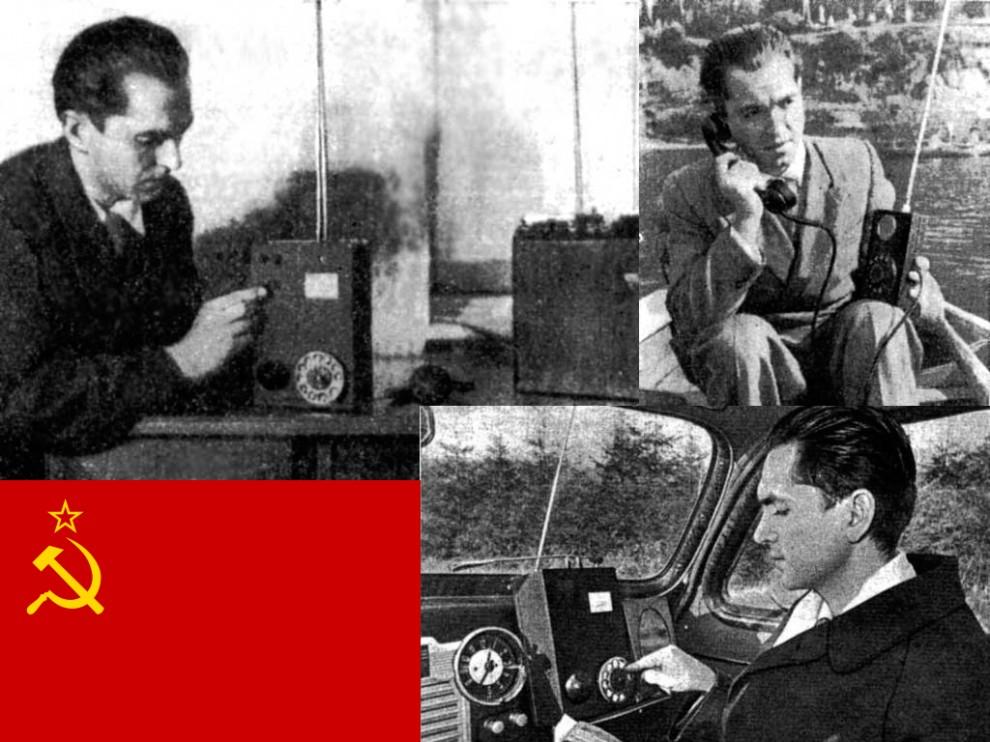
1. 1957. The Soviet scientist L. Kupriyanovich presented his draft mobile phone. The first sample weighed 3 kg, in 1958, the weight was reduced to 0.5 kg, and in 1961 the scientist showed reporters a pocket sample weight of 70 grams, which is located on the palm.
 ในปี พ.ศ. 2500 นักวิทยาศาสตร์สหภาพโซเวียต (ตอนนี้แยกตัวเป็นรัสเซีย ยูเครน เบรารุส คาซักสถาน  และอีก 10 ประเทศ) ชื่อ L. Kupriyanovich  ได้นำเสนอ  แบบร่างของโทรศัพท์มือถือ หนัก 3 กก. อีกปรต่อมาน้ำหนักลดไปเหลือแค่ 0.5 กก.  จนในปี 2518 มีขนาดพกพาได้ หนัก 70 กรัม
021 990x742 The evolution of mobile phones, from Soviet designs to Full HD smartphone future
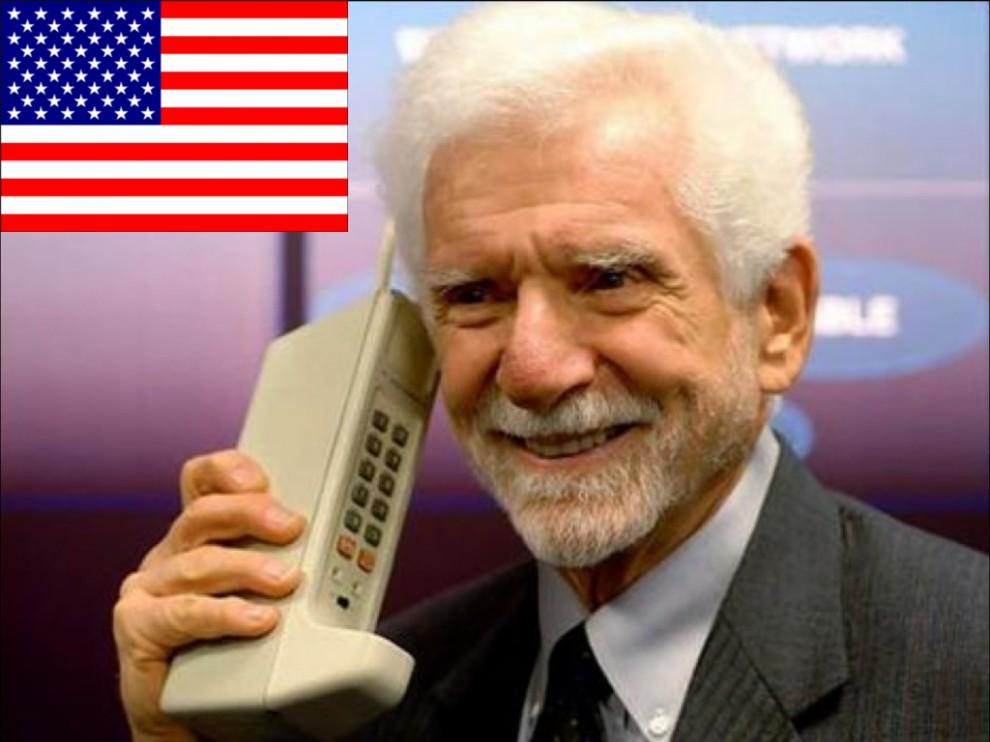
2. 1973. The first call is perfect with the phone Motorola DynaTAC. The developer of the first mobile phone Motorola Martin Cooper called the employee of a competing company AT & T Joel Engel. It is from the era of the Motorola phone provider in the U.S..
 ในปี 2516  โทรศัพท์เคลื่อนที่ของ Motorola อเมริกา ก็สามารถใช้การได้
031 990x742 The evolution of mobile phones, from Soviet designs to Full HD smartphone future
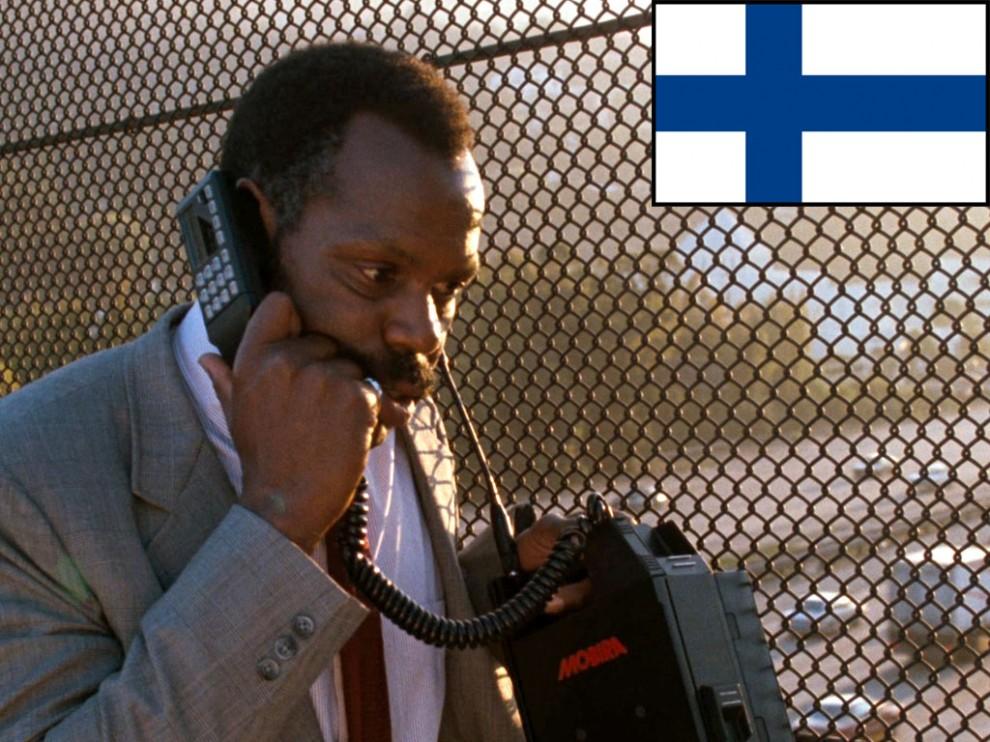
3. 1984. It turns out the first mobile phone of Nokia. Mobira Talkman weighs 4.7 kg. After 6 years, the cell phone has become one of the first available in Russia (in 1990 he, along with the connection to the first mobile operator to "Delta Telecom" was worth about $ 4000). Begins the era of Nokia.
พ.ศ.2528 ของ Nokia แห่งฟินแลนด์

041 990x656 The evolution of mobile phones, from Soviet designs to Full HD smartphone future
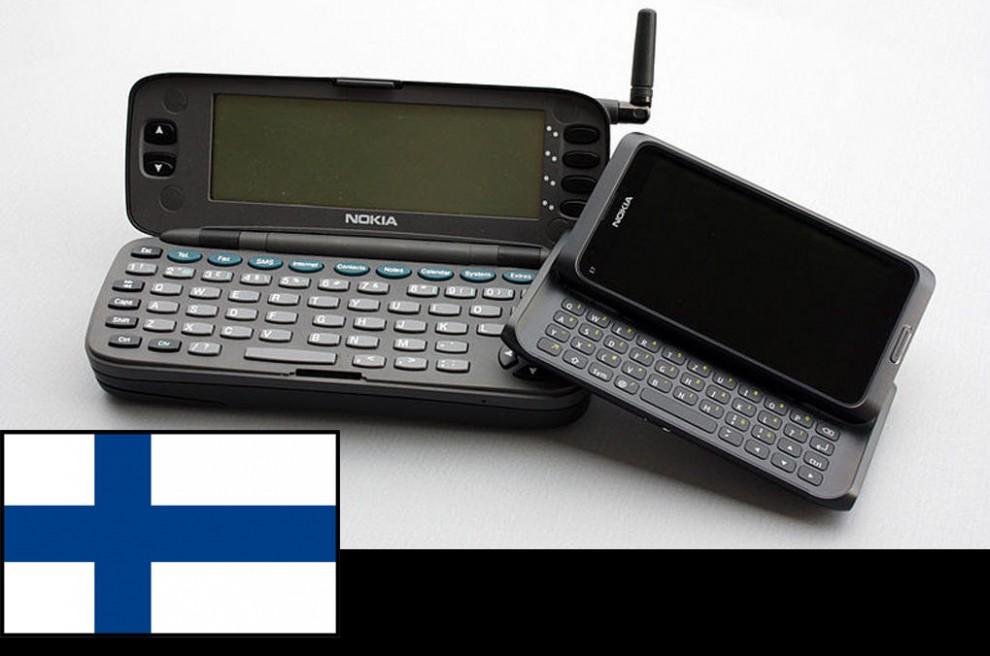
4. 1996. The world's first smartphone, Nokia 9000. QWERTY-keyboard, large screen, retractable antenna - anything you can dream of in 1996, the year.
 พ.ศ.2539 โทรศัพท์โนเกีย จอใหญ่ แป้นพิมพ์มาตรฐาน QWERTY
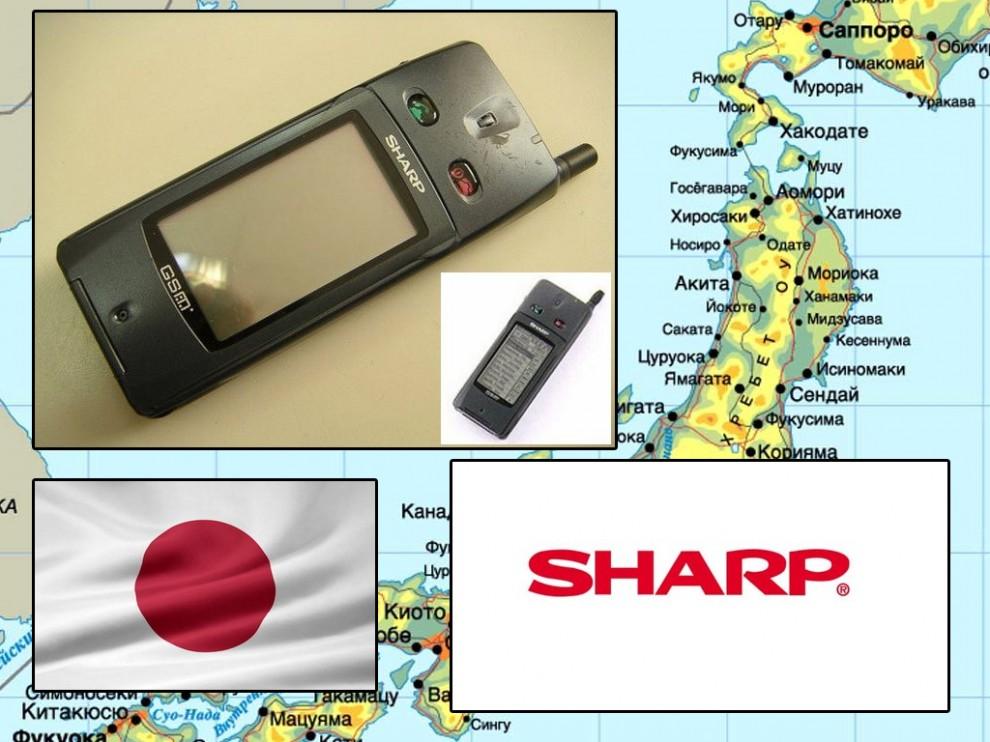
051 990x742 The evolution of mobile phones, from Soviet designs to Full HD smartphone future
5. 2000. The first touchscreen phone, Sharp RSM-1. In Japan, the explosive demand for mobile phones, the penetration of technology it was already close to 80%. Now cell phones are armed with about 99% of Japanese people. Gradually Japanese cell phone makers are beginning to crowd of competitors in the global market.
 พ.ศ.2543 โทรศัพท์แบบจอสัมผัสเครื่องแรก ยี่ห้อชาร์ป ของประเทศญี่ปุ่น
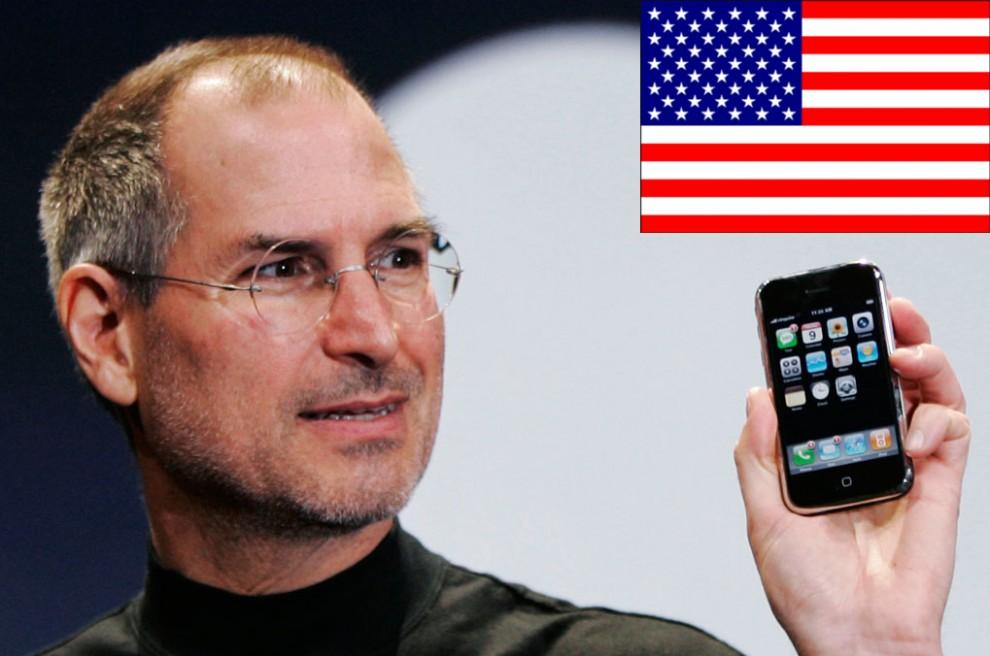
061 990x656 The evolution of mobile phones, from Soviet designs to Full HD smartphone future
6. 2007. Still alive and young Steve Jobs shows the world the first iPhone. Now looking "weak" even against the background of the cheapest android-Chinese backgrounds then became a real breakthrough. Manufacturers around the world are taking up pencils and patterns.
สตีฟ จอบส์ แห่งบริษัท Apple โชว์ให้เห็นถึงนวัตกรรมของบริษัทของเขา iPhone
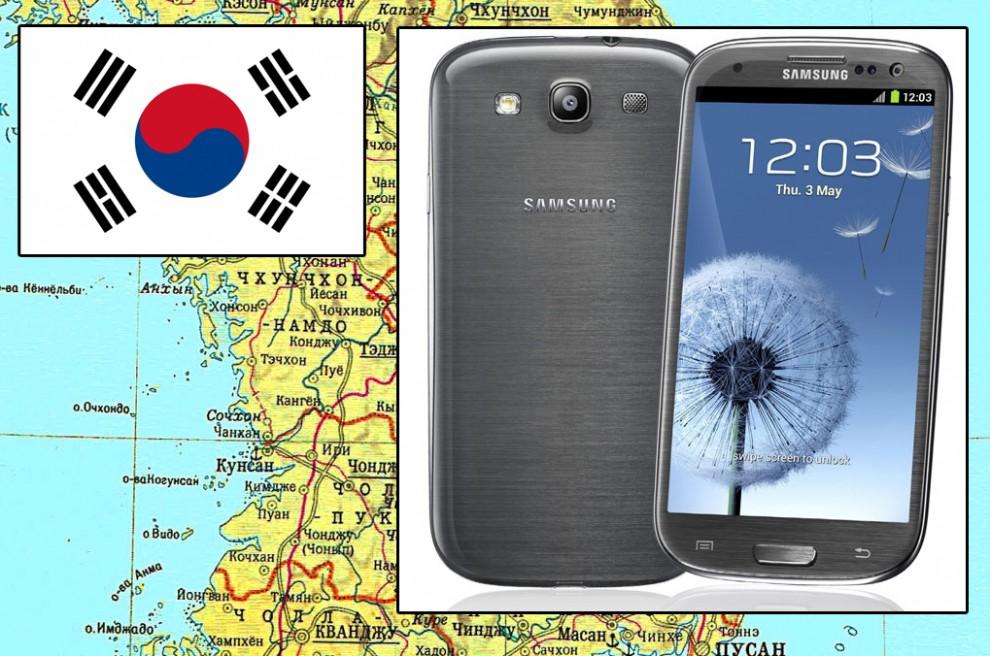
071 990x656 The evolution of mobile phones, from Soviet designs to Full HD smartphone future
7. 2012. Samsung passes Apple in the summer of Sales: sold about 50 million smartphones. Part of the reason for that was the release of a successful flagship Galaxy SIII. Home sales of the fifth iPhone is scheduled only for September. "Patent War" - protracted litigation between the two leaders of the global smartphone market - is in full swing.
ในปี 2555 Samsung แห่งเกาหลี ก็แซงหน้ายอดขายของบริษัท Apple แห่งอเมริกาได้สำเร็จ
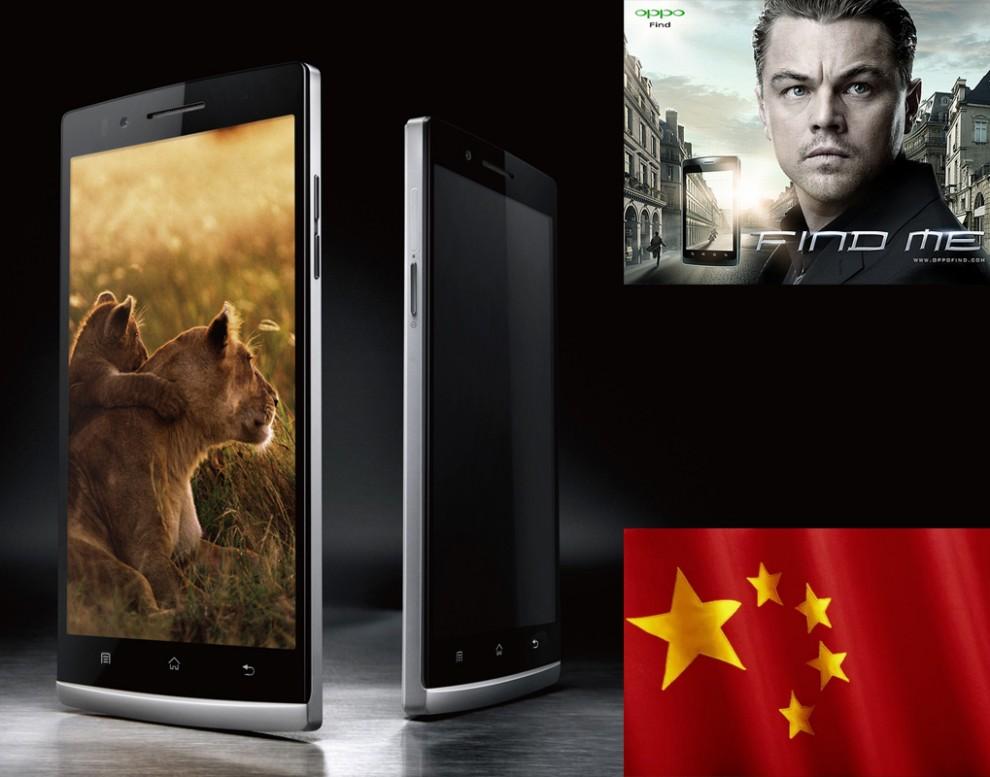
081 990x777 The evolution of mobile phones, from Soviet designs to Full HD smartphone future
8. 2013. Simply create a high-tech gadget to the success in the world market is small. Almost every modern smartphone manufacturer introduced a model with a Full HD display. Quad-core processor, high-quality sound, excellent camera with high resolution, nobody will be surprised. Sony Xperia Z, HTC One, Samsung Galaxy S4 - all the big news of the last year is technically almost identical.

ขอขอบคุณข้อมูลจากwww.occupatech.blogspot.com

วันจันทร์ที่ 2 กันยายน พ.ศ. 2556

Facebook Data Center ศุนย์ข้อมูลของเฟซบุ๊ก

Facebook Data Center ศุนย์ข้อมูลของเฟซบุ๊ก

                  Teacher Phaitoon  Yaemprasuan  :  http://picta55.blogspot.com
   
                SOURCE  :  http://www.bigpicture.ru


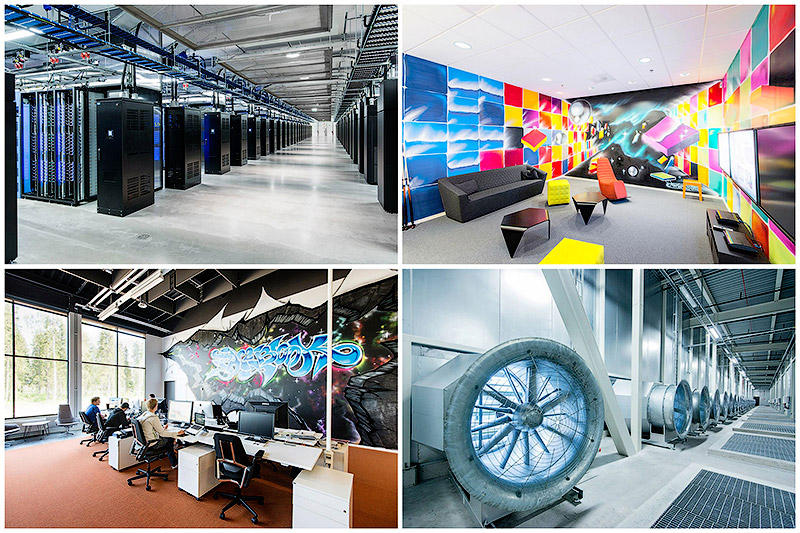
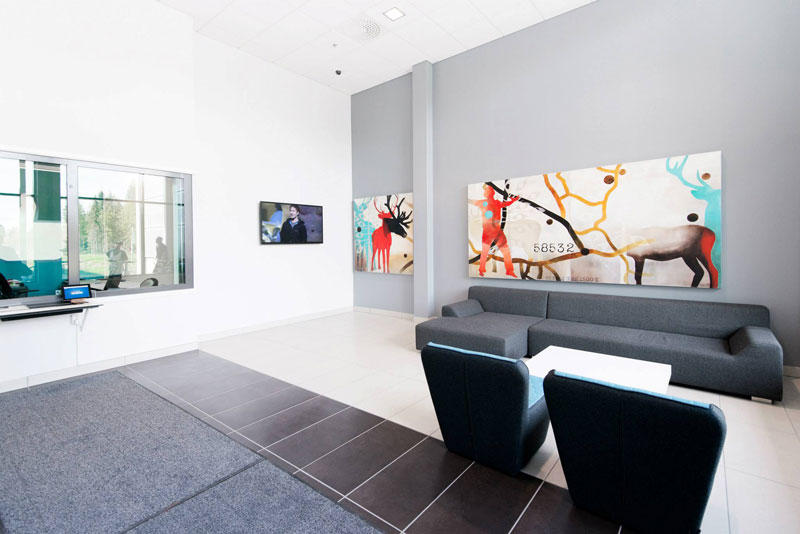
At the edge of the Arctic Circle in Lulea (Sweden) is the newest data center Facebook. The Center handles data about users of social networks around the world. 
 ชายขอบของเส้น Arctic Circle  (เขตอากาศหนาวเหนือ ตั้งแต่เส้นอาร์คติค เซอร์เคิล (Arctic Circle) ถึงขั้วโลกเหนือ เขตนี้ได้รับแสงเฉียงจากดวงอาทิตย์ปีละไม่เกิน 6 เดือน เป็นเขตที่มีประชากรอาศัยอยู่เบาบาง)  เมือง Lulea  ประเทศ Sweden เป็นศูนย์ข้อมูลแห่งใหม่ของ Facebook  ศูนย์ข้อมูลแห่งนี้เก็บข้อมูลของผู้ใช้เครือข่ายสังคอมออนไลน์จากทั่วโลก  (น่าจะรวมเด็กนักเรียนของเราด้วยแน่นอน เพราะเด็กเราชอบและใช้ Facebook กันมหึมามหาศาล จนอาจจะเรียกได้ว่า เป็นกิจวัตรประจำวันไปซะแล้ว)

BIGPIC26 Центр обработки данных Facebook возле Полярного круга 


FBDataCenter01 Центр обработки данных Facebook возле Полярного круга
1. Data center in Lulea became the first data center outside of the U.S..
ศูนย์ข้อมูลแห่งนี้ เป็นศูนย์ข้อมูลแห่งแรกของ Facebook นอกประเทศสหรัฐอเมริกา

FBDataCenter02 Центр обработки данных Facebook возле Полярного круга
2.
FBDataCenter03 Центр обработки данных Facebook возле Полярного круга
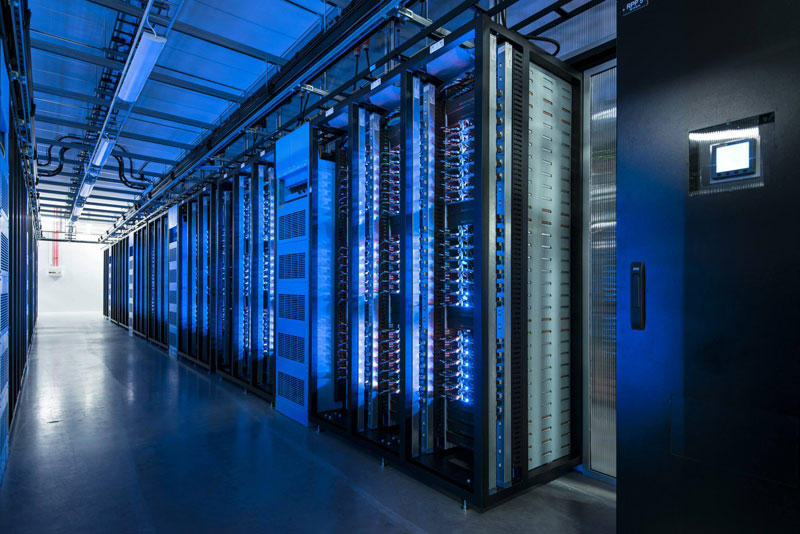
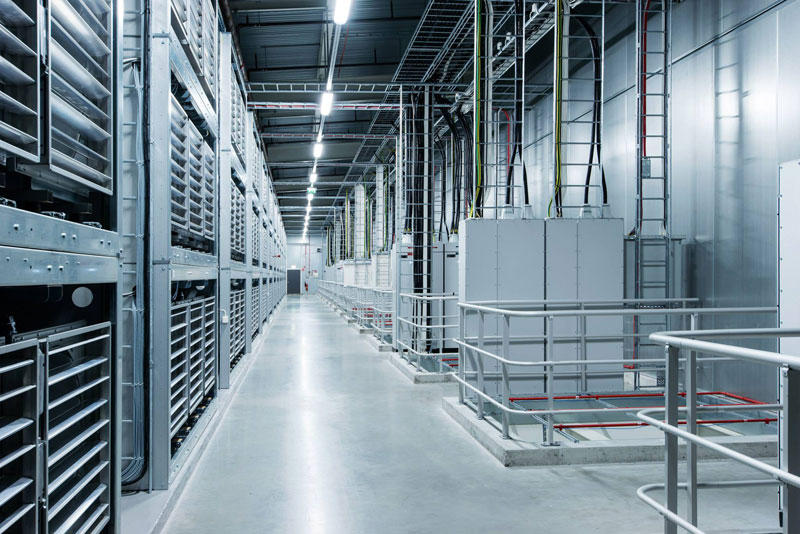
3. Facebook Guide believe that Lulea is likely to be one of the most efficient and sustainable data centers in the world.
Facebook เชื่อว่า ศูนย์แห่งนี้จะมีประสิทธิภาพ (efficient) และเก็บข้อมูลได้อย่างยั่งยืนสุดๆ(sustainable)

FBDataCenter04 Центр обработки данных Facebook возле Полярного круга
4.
FBDataCenter05 Центр обработки данных Facebook возле Полярного круга
5. All the equipment in the center provides electricity to the local hydroelectric power plant that runs on renewable energy, thus reducing the number of backup generators for more than 70%.
อุปกรณ์ทั้งหมดในศูนย์แห่งนี้ จะใช้ไฟฟ้าจากพลังงานสะอาด คือจากโรงไฟฟ้าพลังน้ำที่อยู่ในท้องถิ่น ซึ่งเป็น renewable energy (พลังงานหมุนเวียน)  จึงสามารถลดจำนวนเครื่องกำเนิดไฟฟ้าสำรอง (backup generators) ได้ถึงร้อยละ 70

FBDataCenter06 Центр обработки данных Facebook возле Полярного круга
6.
FBDataCenter07 Центр обработки данных Facebook возле Полярного круга
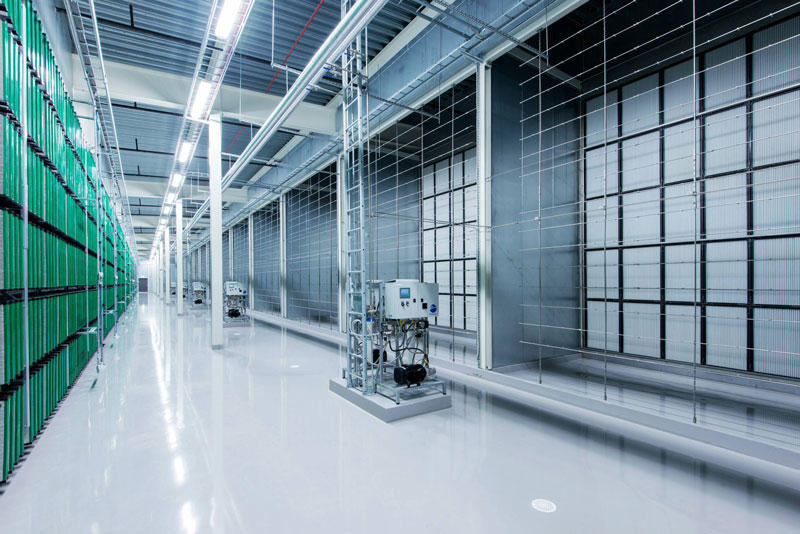
7. In addition to the energy of the water, the center is also used by the northern cold air to cool the servers that store photos, videos, comments and "likes." Any excess heat is used to maintain a comfortable temperature in offices. 
นอกจากพลังงานสะอาดที่ได้จากไฟฟ้าพลังน้ำแล้ว  ศูนย์ข้อมูลแห่งนี้ ก็ยังอาศัยอากาศหนาวที่พัดมาจากขั้วโลกเหนือช่วยระบายความร้อนจากเครื่อง Servers (เครื่องแม่ข่าย) ของศูนย์ฯ ที่เก็บรูปภาพ วิดีโอ และ comments และ likes ของผู้ใช้เฟสบุ๊คจากทั่วโลก  และที่สำคัญความร้อนที่เกิดจากการทำงานของระบบเหล่านี้ จะถูกนำไปสร้างความอบอุ่นในสำนักงานอีกด้วย (เพราะอากาศที่โซนนี้หนาวมากนั่นเอง ตามที่กล่าวแล้ว)
FBDataCenter08 Центр обработки данных Facebook возле Полярного круга
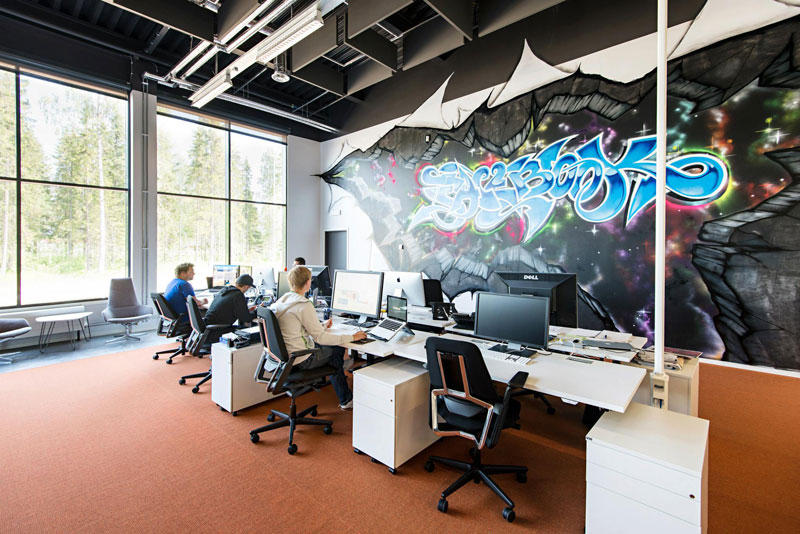
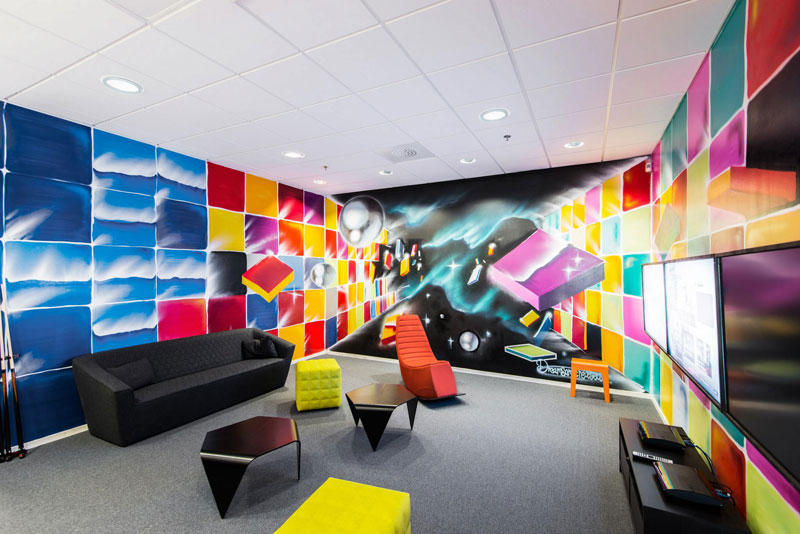
8. The so common office of them. 
    สำนักงานของพวกเขา ออกแนวธรมดาๆ บ้านๆ มากๆ 

FBDataCenter09 Центр обработки данных Facebook возле Полярного круга
9. Almost all of the technology at the center, from servers to power distribution systems, based on the work of Open Compute Project - community of engineers from around the world, which is engaged in designing storage centers.
เทคโนโลยีของศูนย์ข้อมูลแห่งนี้  ตั้งแต่เครื่องคอมพิวเตอร์แม่ข่าย (servers) ทั้งหลาย ไปจนถึงระบบการกระจายข้อมูล (distribution systems) จะทำงานอยู่บน Open Compute Project ซึ่งเป็นระบบเปิดที่ให้วิศวกรของระบบเฟสบุ๊กจากพื้นที่ต่างๆ ทั่วโลก สามารถเข้ามาใช้งานร่วมกันได้  

FBDataCenter10 Центр обработки данных Facebook возле Полярного круга
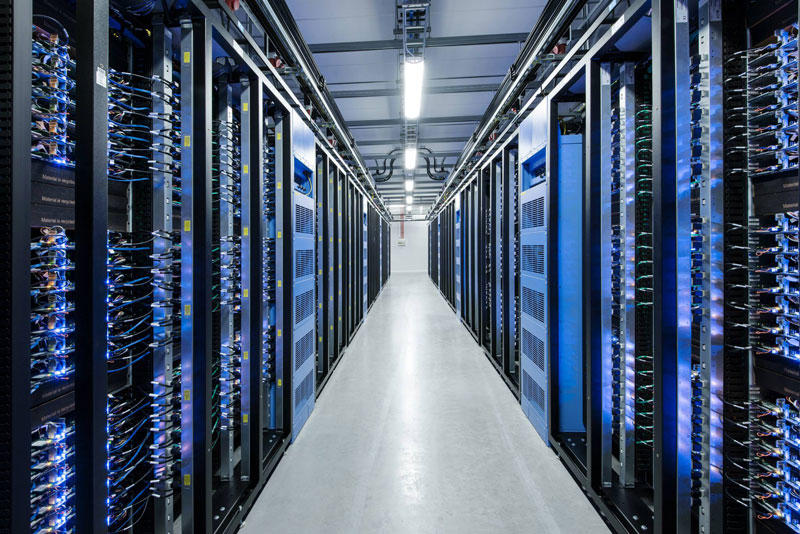
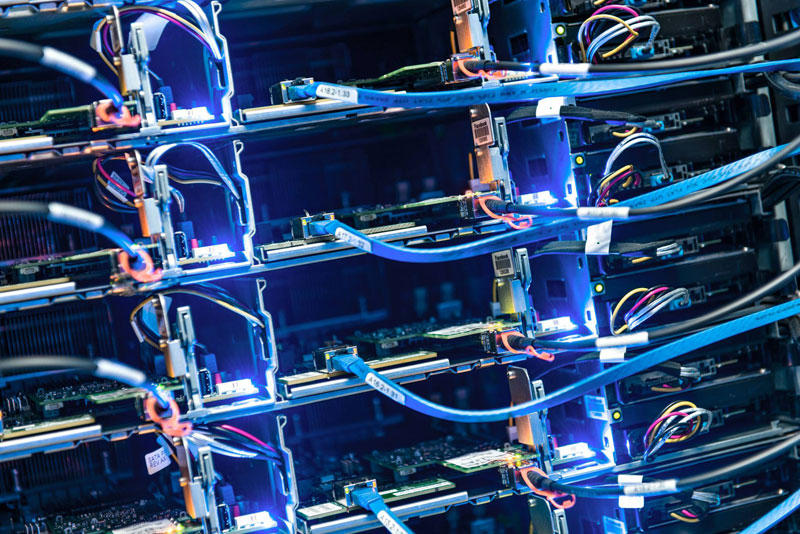
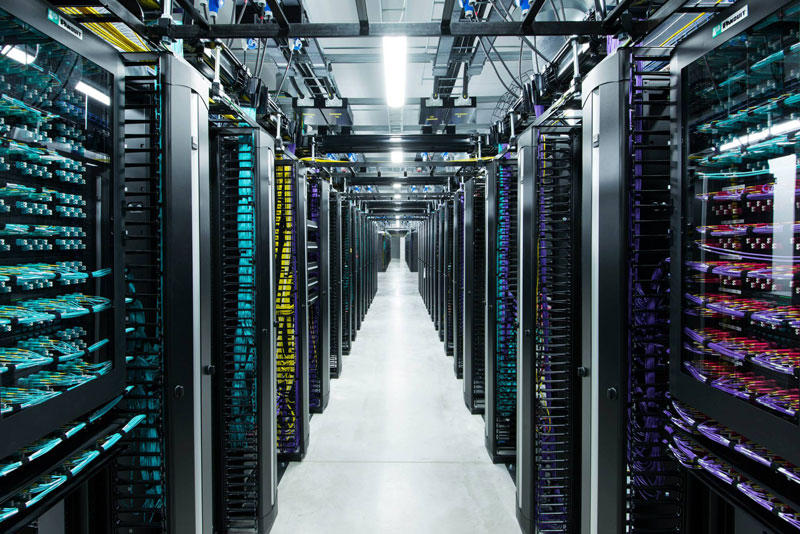
10. You can see the blue STP (Shield Twisted Pair) cables.
      สายสีฟ้านี่คือ สายเคเบิลแบบคู่บิดเกลียวและหุ้มฉนวน (กันสัญญาณรบกวน)
FBDataCenter11 Центр обработки данных Facebook возле Полярного круга
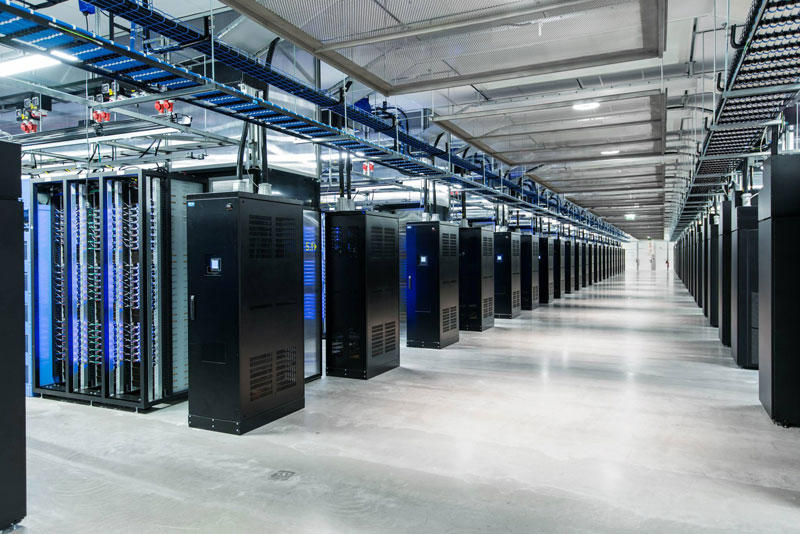
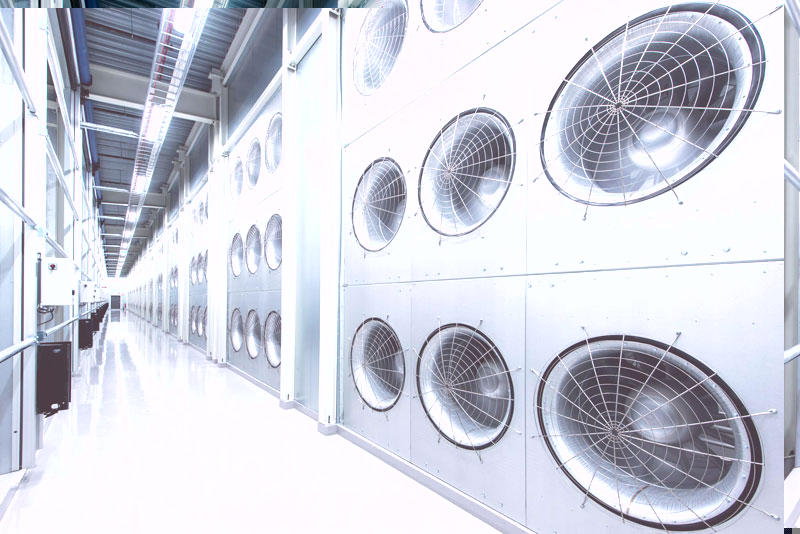
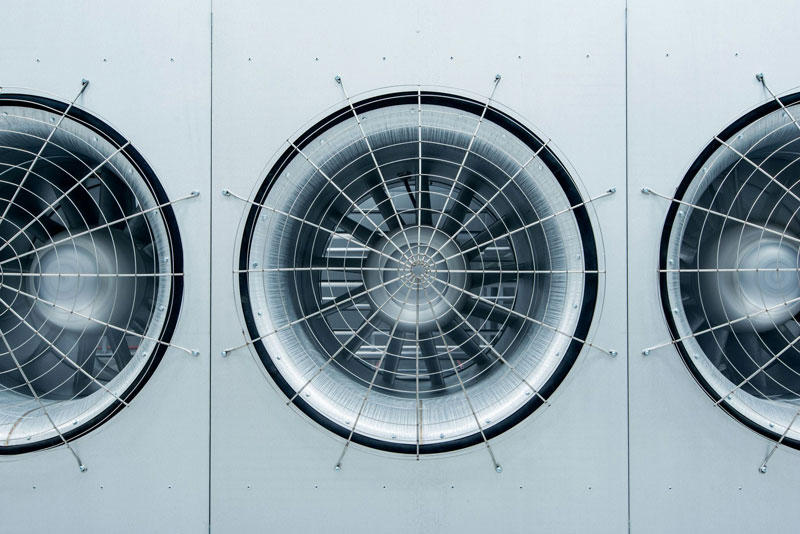
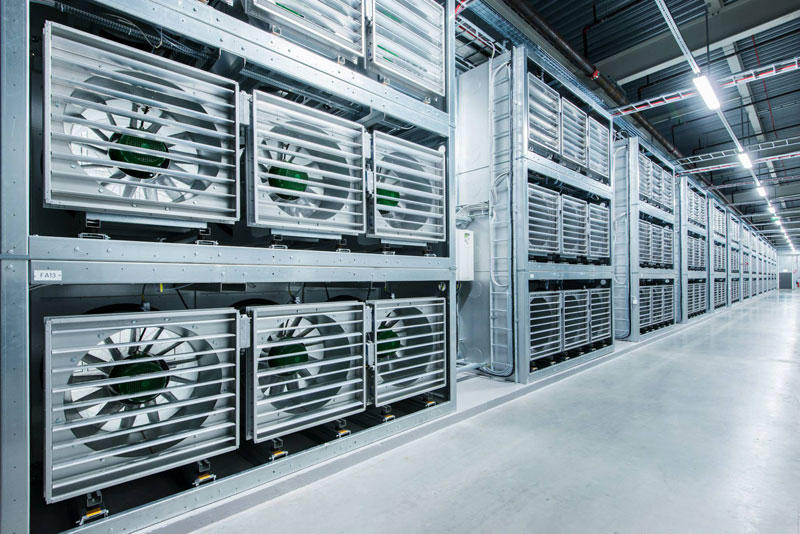
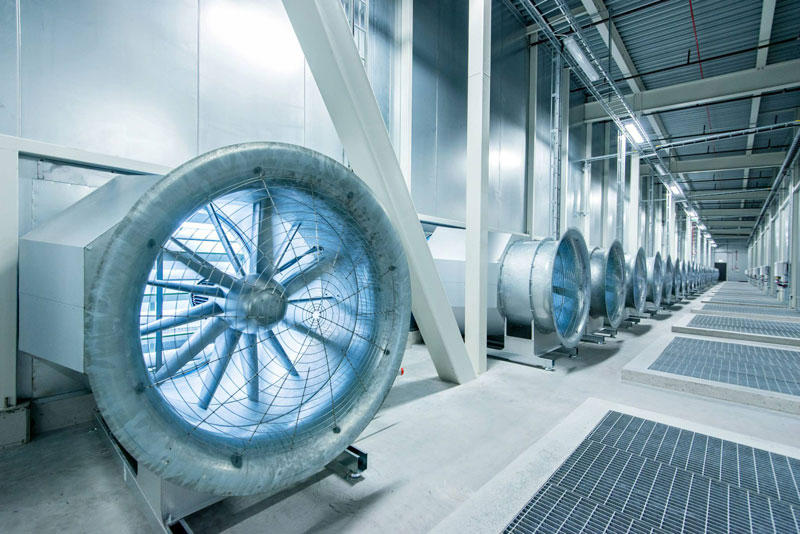
11.These are the ventilators.
นี่พัดลมระบายความร้อนในระบบของพวกเขาล่ะครับ  มโหฟารบานตะโก้ซะขนาดนี้ รับรอง "เอาอยู่"

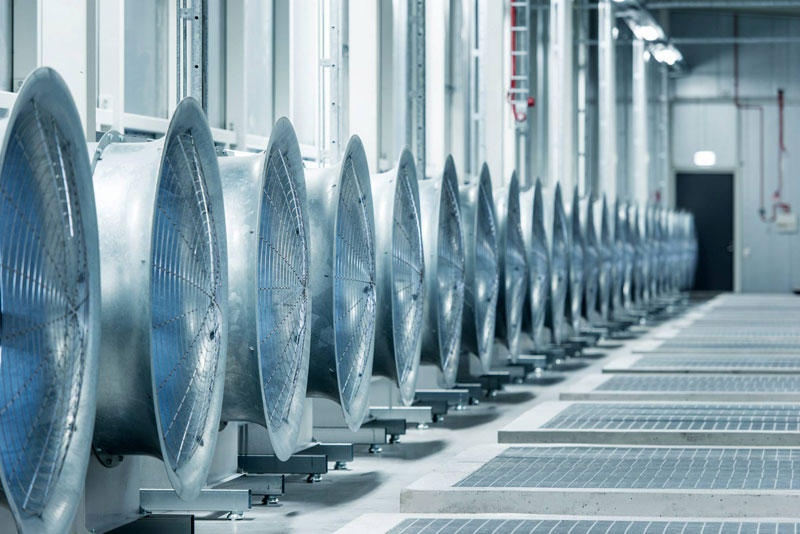
FBDataCenter12 Центр обработки данных Facebook возле Полярного круга
12. The ventilators can never work in the cold season.
พัดลมเหล่านี้ได้พักยาว ก็อากาศแถวเส้นอาร์กติกเซอร์เคิลมันหนาวเย็นเกือบตลอดปีนะสิ (ประหยัดพลังงานสุดๆ เลยนะ ศูนย์แห่งนี้)
 
FBDataCenter13 Центр обработки данных Facebook возле Полярного круга
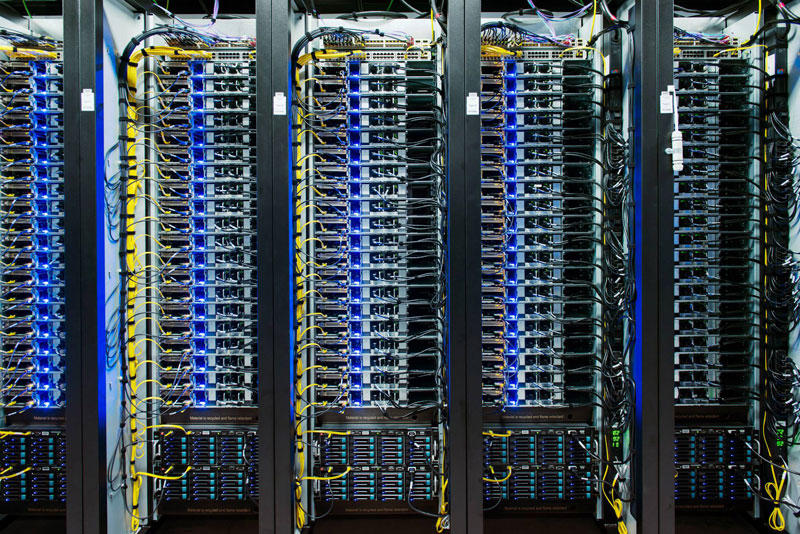
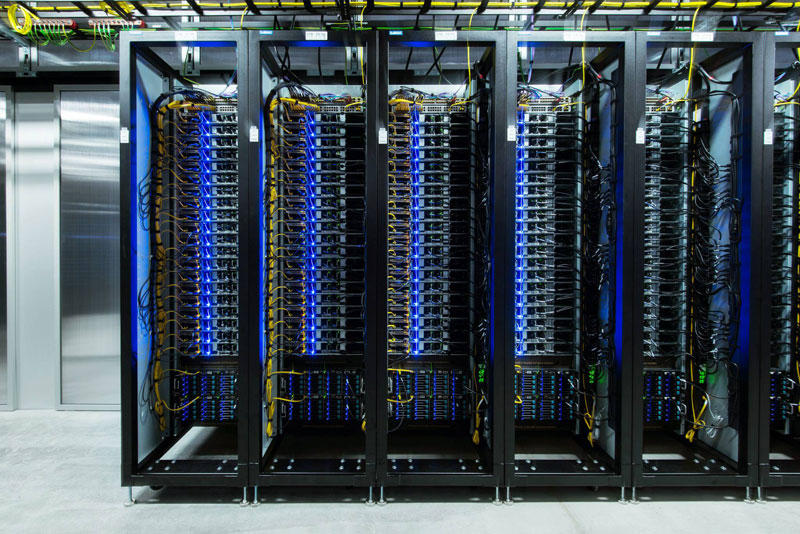
13.These are their server computers.
นี่แหละ หน้าตาเครื่องคอมพิวเตอร์แม่ข่าย (servers) ของเฟสบุ๊คที่คอยเก็บข้อมูล บริหารจัดการข้อมูลและสารสนเทศให้หมู่เฮาล่ะนะ


FBDataCenter14 Центр обработки данных Facebook возле Полярного круга
14.
FBDataCenter15 Центр обработки данных Facebook возле Полярного круга
15. During the first week of work, the coefficient of efficiency of energy consumption in the new center Facebook was 1.07.
ในสัปดาห์แรกของการใช้งาน the coefficient of efficiency of energy (ค่าสัมประสิทธิ์การบริโภคพลังงาน) เท่ากับ 1.07

FBDataCenter16 Центр обработки данных Facebook возле Полярного круга
16.
FBDataCenter17 Центр обработки данных Facebook возле Полярного круга
17.
FBDataCenter18 Центр обработки данных Facebook возле Полярного круга
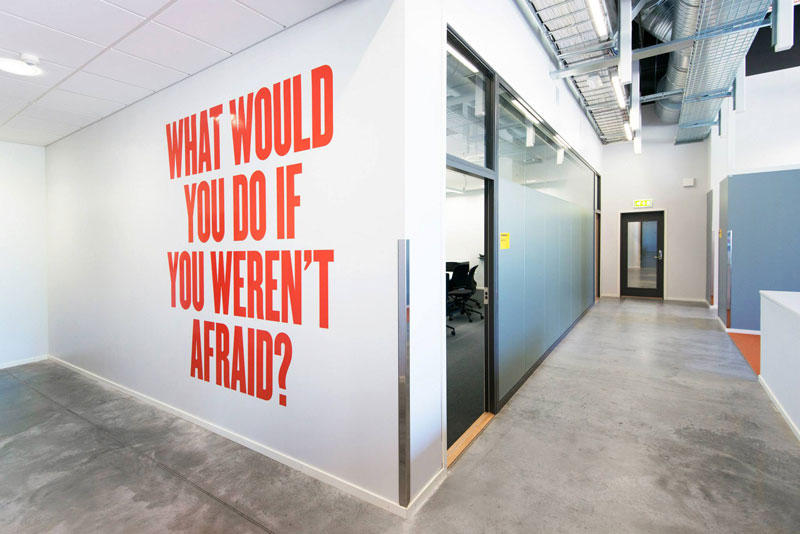
18. The inscription on the wall of the center: "What would you do if you have nothing to be afraid of?"
คำจารึกที่ผนังกำแพงของศูนย์ "คุณจะทำอะไรดีเอ่ย ถ้าไม่มีอะไรที่ทำให้คุณกลัว?"

FBDataCenter19 Центр обработки данных Facebook возле Полярного круга
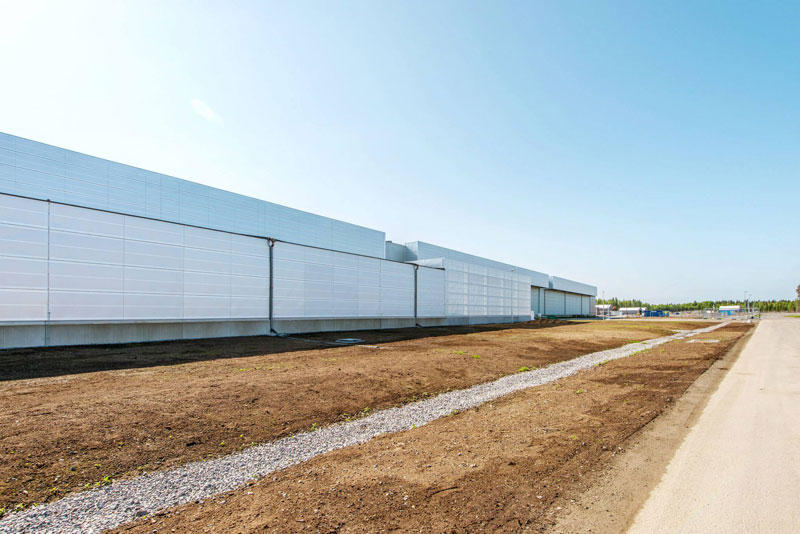
19. It looks like this in the summer, but on the other hand it is covered with heavy snow.
ที่เห็นเป็นอย่างนี้นะเหรอ ..เพราะมันหน้าร้อน (อันแสนสั้น) ของเขาอ่ะดิ ..เพราะปกติแล้ว มันจะขาวโพลนไปด้วยหิมะเกือบทั้งปี  

FBDataCenter20 Центр обработки данных Facebook возле Полярного круга

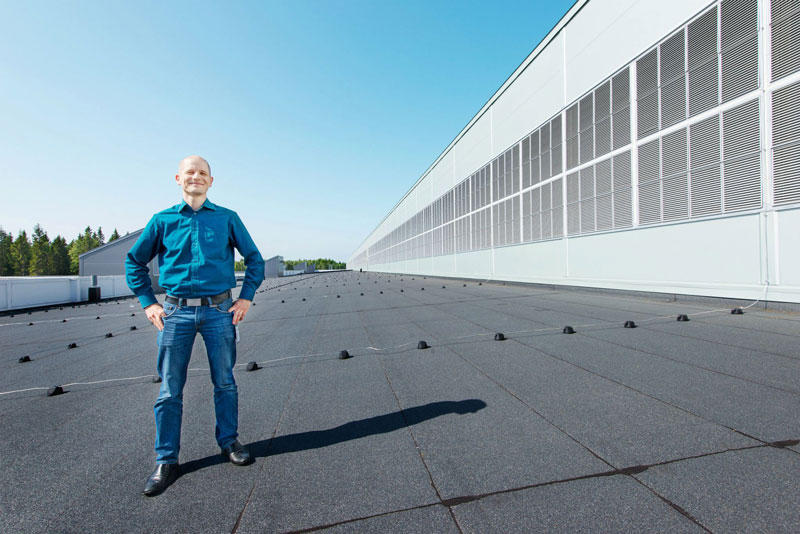
20. Center Manager - Joel Kelgren.  ผู้จัดการศูนย์

อ้างอิง http://occupatech.blogspot.com
Folder and Printer Sharing การแชร์โฟลเดอร์/เครื่องพิมพ์

Folder and Printer Sharing การแชร์โฟลเดอร์/เครื่องพิมพ์

                      by  Teacher   Phaitoon  Yaemprasuan
                             occupatech@gmail.com; picta55@gmail.com
                             http://picta55.blogspot.com

The Atmosphere of My 2003 Computer Class at 4th Floor of Building1.
They were energetic and very nice schoolkids I have ever experienced.

บรรยากาศห้องเรียนคอมพิวเตอร์  2546 สมัยยังอยู่ชั้น 4  อาคาร 1 
พวกเขาเป็นเด็กนักเรียนที่ขยันขันแข็ง ตั้งใจเรียน และเป็นเด็กดีมากที่สุดรุ่นหนึ่งเท่าที่ครูเคยเจอ
All of us use Windows7 as the operating software, and our computers are connected together within the workgroup of the LAN (local area network). So we should gain the benefit of its sharing capability. Here we go!
ตอนนี้พวกเราล้วนแล้วแต่ใช้ Windows7 เป็นซอฟต์แวร์ระบบปฏิบัติการ (ในห้องเรียน และที่บ้านด้วย)  และเครื่องของพวกเราก็เชื่อมต่อกันเป็นเวิร์กกรุ๊ปในระบบแลน  ดังนั้นเราก็น่าจะใช้ความสามารถในการแชร์ทรัพยากรระหว่างกันได้  ลองดูกัน

1. FOLDER SHARING
        การแชร์โฟลเดอร์

Be sure we have to specify what folder that we want to share?  
ต้องระบุโฟลเดอร์ที่ต้องการแชร์


"BOOKS" is the folder of us to be shared.
ฟลเดอร์ "BOOKS" คือโฟลเดอร์ที่เราอยากแชร์

 Make a right clicking with the folder, the dialogue box appears. Select the "Sharing" tab and the "Advanced Sharing" button
คลิกขวาที่โฟลเดอร์  กรอบโต้ตอบจะปรากฏขึ้น  เราก็เลือกแท็บ 
"Sharing" และปุ่ม 
"Advanced Sharing"


Now the folder has never been shared yet (Not Shared)
ตอนนี้โฟลเดอร์นี้มีสถานภาพไม่ได้ถูกแชร์ไว้

 Properties window of the folder appears and we should select to share it with others. Now we can see the maximum number of users to simultaneously enter to the folder is 20. Then we can click on the "Permission" button.
จะ ปรากฏหน้าต่างพรอพเพอร์ตีส์ (คุณสมบัติ) ของโฟลเดอร์นี้ขึ้นมา  และเราก็ต้องเลือกว่าจะแชร์กัน  และจะเห็นว่า เพื่อนๆ จะเชื่อมต่อเข้ามาใช้โฟลเดอร์ของเราพร้อมกันได้เต็มที่ 20 เครื่อง แค่นั้น  ต่อมาก็เลือกคลิกปุ่ม "Permission"

Tick the check-box, and we can change the share name or ignore it.
ติ๊กเลือกว่าจะแชร์  จะเปลี่ยน/หรือไม่เปลี่ยนชื่อที่จะแชร์ก็ได้

After clicking on the permission button, the Permissions window shows up, you can add any user e.g. "student" and you can change the permission type of the user.
หลังจากคลิกปุ่ม permission  จะมีหน้าต่างโผล่มาให้เราปรับเปลี่ยนตามความต้องการ

We can add user/ specify his permission level.
เราสามารถเพิ่มยูสเซอร์ / ระบุระดับการอนุญาตใช้งานโฟลเดอร์ของเราแก่เขา

Finally click on the "Apply" button, the folder now has been shared. 
เมื่อเราคลิกปุ่ม "Apply" โฟลเดอร์ของเราก็ได้รับการแบ่งปันให้ใช้ร่วมกันได้ในเครือข่ายแล้ว

Well, our folder has been shared.
Folder ของเราได้รับการแชร์กันใช้เรียบร้อยแล้ว

Sample Special
ตัวอย่าง


This is from my computer (Its hostname is "ALPHA00".), when I click on the "Network" (at the left pane of Windows7 " computer explorer" ),  some computer hostnames appears.  Yes, I want to randomly select any hostname. If the target of mine is "KACHATUCH", well, I would make a double-click on it.
นี่ เป็นคอมพิวเตอร์ของครูที่ห้องพักครู (โฮสต์เนมว่า ALPHA00)  เมื่อครูคลิกเลือก Network (อยู่ตรงแถบซ้ายของหน้าต่าง Computer explorer ของ Windows7 ก็จะปรากฏโฮสต์เนมต่างๆ ในเครือข่าย  แน่นอนว่า ครูก็คงต้องสุ่มเลือกเข้าไปใช้เครื่องใดสักเครื่อง  ที่ครูเล็งไว้ก็คือเครื่องที่มีโฮสต์เนมว่า Kachatuch

My Target Hostname is "KACHATUCH"
เครื่องที่ครูเล็งไว้คือ โฮสต์เนมที่ชื่อว่า Kachatuch

The shared folders of the hostname will be appeared. Then we can do a random selection and we can find any other subfolders that we can select to use.
ตอน นี้ก็จะเห็นโฟลเดอร์ที่โฮสต์เนม Kachatuch  เราก็คงต้องสุ่มเลือกโฟลเดอร์  แล้วเราก็จะเห็นโฟลเดอร์ย่อยๆ ที่เราสามารถจะเลือกเข้าไปใช้ได้ 

The Shared Folders of "Kachatuch" appears, any folder could be selected.
  If any shared folder had been selected its subfolders would be revealed. 

แชร์โฟลเดอร์ของโฮสต์เนม "Kachatuch" ก็จะปรากฏขึ้นมาให้เห็น เราสามารถเลือกโฟลเดอร์ไดก็ได้
ถ้าแชร์โฟลเดอร์ใดถูกเลือกเข้าใช้ โฟลเดอร์ย่อยๆ ก็จะได้รับการเปิดตัวออกมาให้เห็นฝเลือกใช้ได้


 2. PRINTER SHARING
        การแชร์พรินเตอร์


 Click the "Start button" of Windows7 desktop, the pop-up menu appears, then select "Devices and Printers", the target printer of us will be appeared.
จากปุ่ม Start ของ Windows7 เราก็เลือก "Devices and Printers"  ก็จะเจอพรินเตอร์ที่เราอยากจะแชร์กันใช้

Select the printer

 Make a right click on the printer icon, the select menu will show up, then select "Printers properties" option.  Then we can operate sharing easily.
คลิ กขวาที่รูปพรินเตอร์ จะมีป็อปอัพเมนูโผล่ขึ้นมา ให้เราเลือก "Printers properties" ต่อจากนี้ เราก็คงจะปฏิบัติการแชร์พรินเตอร์ได้ไม่ยากแล้ว...

Select : Printer Properties

Click on the "Sharing tab", and we can rename the sharing printer.
เลือกแท็บ Sharing และสามารถเปลี่ยนชื่อพรินเตอร์ที่กำลังจะแชร์ได้ด้วย

Select the Sharing Tab
 

Select to share

วันจันทร์ที่ 5 สิงหาคม พ.ศ. 2556

Computer Network

Computer Network เครือข่ายคอมพิวเตอร์


What is Computer Network? Why?

If any computer is not connected to others it is called "a stand-alone machine".  Today if anyone uses any stand-alone machine , he must be considered a stranger because the world today is of computer networks. A network machine can send/receive packets (bits of data per second) to/from any other machines e.g. Internet.  Our computers/tablet PCs/smart phones can never be alone anymore. Yes, they have been connected to their networks both local (e.g. the networks in our school) and global (e.g. Internet). We can share our resources such as  files, printers etc. to each other through our local area network (LAN) or we can exchange our data through the wide area network (WAN) like Internet. 

เครือข่ายคอมพิวเตอร์คืออะไร? ทำไม?

ถ้าหากคอมพิวเตอร์เครื่องไหนไม่ได้เชื่อมต่อกับใคร มันจะถูกเรียกว่า "เครื่องที่โดดเดี่ยว" และ ถ้ามีคนใช้เครื่องคอมพิวเตอร์แบบนั้น ก็จะถูกมองว่าเพี้ยนหรือเปล่า?  เพราะโลกทุกวันนี้ได้กลายเป็นโลกของเครือข่ายคอมพิวเตอร์ไปเรียบร้อยแล้ว  เครืองคอมพิวเตอร์ที่เชื่อมต่อกับเครือข่าย จะสามารถส่ง/รับข้อมูล ไปสู่/จากเครื่องอื่นๆ  เช่น  อินเทอร์เน็ต  เครื่องคอมพิวเตอร์/แท็บเล็ต/สมาร์ตโฟน ของเรา จึงไม่อาจอยู่ได้อย่างเดียวดายอีกต่อไป  เพราะมันจักต้องถูกเชื่อมต่อเข้ากับระบบเครือข่าย  ทั้งเครือข่ายท้องถิ่น (เช่น เครือข่ายภายในโรงเรียนของเรา)  และเครือข่ายระดับโลก (เช่น อินเทอร์เน็ต)  เรายังสามารถแบ่งปันทรัพยากร อาทิ  ไฟล์ เครื่องพิมพ์  ให้กันและกันในเครือข่าย ผ่านระบบเครือข่ายเฉาะที่ (แลน) หรือเราสามารถแลกเปลี่ยนข้อมูลผ่านระบบเครือข่ายวงกว้างอย่างอินเทอร์เน็ต ได้ด้วย 


Figure 1   What is Computer Network  เครือข่ายคอมพิวเตอร์คืออะไร

Figure 2  Computer Network classified by Area Width
เครือข่ายคอมพิวเตอร์ จำแนกตามขนาดของพิ้นที่


Figure 3  Types of Network Topology
รูปแบบการเชื่อมต่อของเครือข่าย


Figure 4   Star/Extended Star Topology
รูปแบบการเชื่มต่อแบบสตาร์ และแบบสตาร์หลายๆ กลุ่ม
Figure 5   The Server-Client Network What/How
เครือข่ายคอมพิวเตอร์แบบ แม่ข่าย-ลูกข่าย              
Sources : www.occupatech.blogspot.com.

Freind's Link

3.ชุติพนธ์ อู่อรุณ
4.ณัฐวุฒิ สืบสมุทร
5.ทัตเทพ แย้มวงศ์
6.ธนธรณ์ วิวัฒน์ภาสวร
7.ธนวินท์ ท้าวโสม
8.นนทกานต์ โพธิ์ศรี
9.นนทพัทธ์ พูลสวัสดิ์
10.ปฏิภาณ สันติกฤษณเลิศ
11.พัลลภ สะมะ
12.ภูมิเดช เสร็จกิจ
13.สหรัฐ อ่อนดำ
14.สิรภพ กตติวัฒนากูล
15.สิรวิชญ์ ยุวศิรินันท์
16.อาชวิน หงษ์โต
17.อานนท์ เล็กโสภี

วันจันทร์ที่ 1 กรกฎาคม พ.ศ. 2556

How to create blogger

How to create blogger

1. ขั้นตอนแรก ให้ไปสมัคร Gmail หรือ google mail ก่อนครับ

2. กรอกรายละเอียดให้ครบถ้วน แล้วกดยืนยันการสมัคร Gmail

3. เข้าไปหน้าเว็บ Blogger


4. กรอก Gmail ที่สมัครไว้ก่อนหน้านี้ และกด "ลงชื่อเข้าใช้งาน"

 5. พอกด "ลงชื่อเข้าใช้งาน" แล้วจะมาถึงหน้านี้ ซึ่งจะเป็นหน้าที่ให้กดยืนยันการเข้าใช้งาน Blogger ให้กด "ดำเนินการต่อไปถึงบล็อกเกอร์"

6. แค่นี้ก็สามารถใช้งานบล็อกเกอร์ได้แล้วครับ